General Hardware Terms Explained: CPU, Memory, Storage and I/O Worked Examples
Connect hardware acronyms to one computer-system map, then learn the differences through four step-by-step numericals, a classification table and practice checks.
KnowledgeGate Team
Exam prep & CS education
Updated 25 Jul 20266 min read
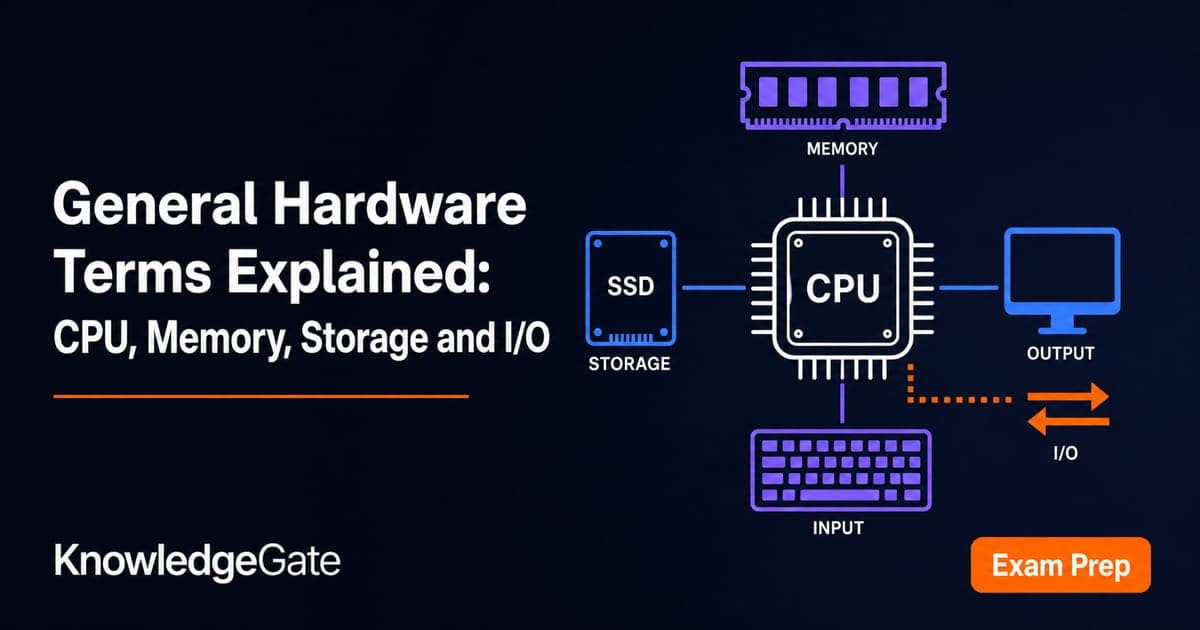
RAM, ROM, CPU, SSD, BIOS and USB can look like an unrelated list of abbreviations. Memorising their expansions is not enough when a question asks you to classify a device, compare memory layers or calculate transfer time. Each of those abbreviations sits at a definite place on one hardware map, and each carries a unit you can calculate with: cycles, bytes, bits per second and milliseconds.
General hardware terms start with one computer-system map
Hardware means the physical components of a computer system. Software is the set of instructions that runs on that hardware, while firmware is persistent control code stored on a device.
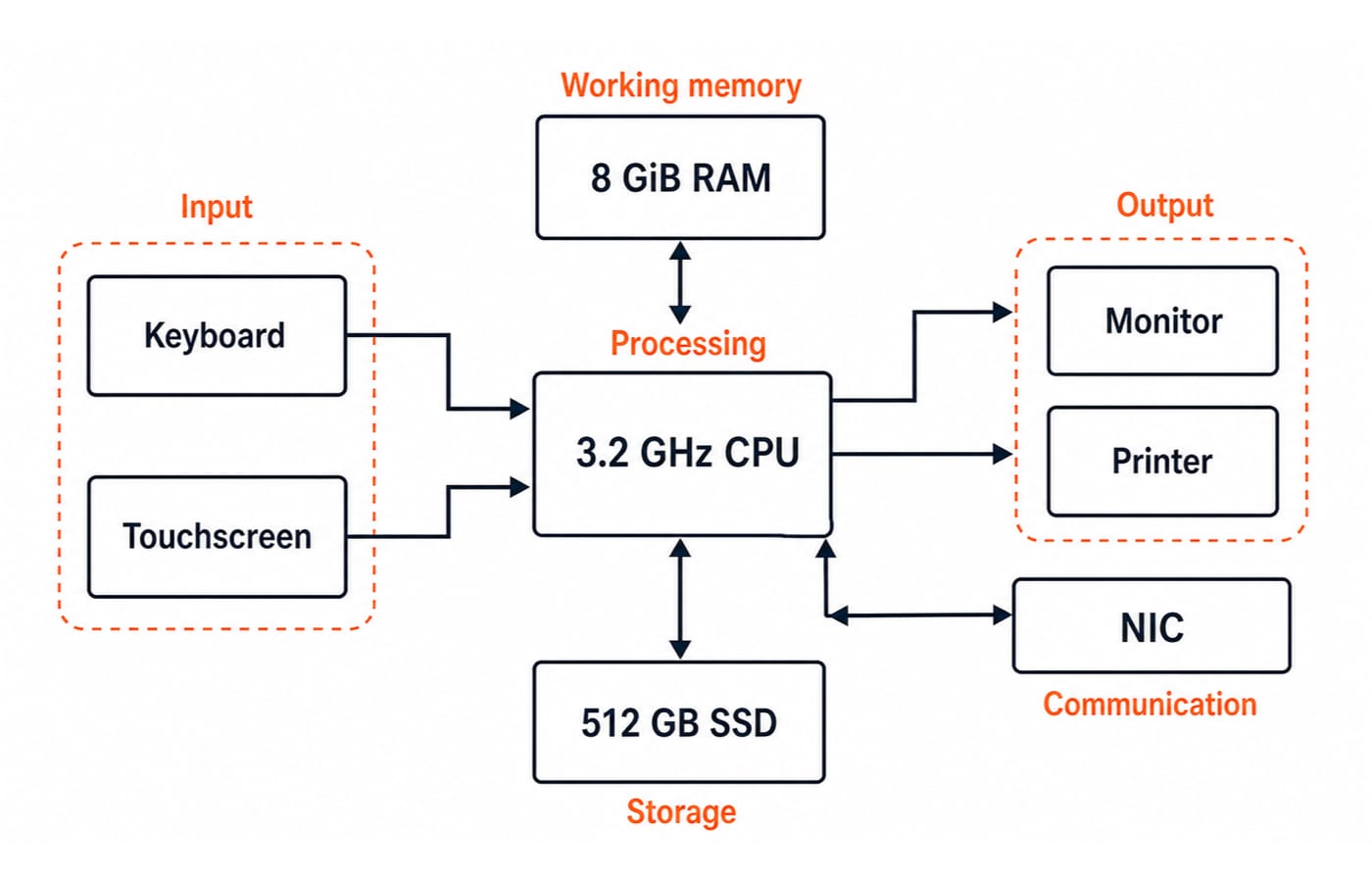
It is easier to organise hardware by job: input, processing, working memory, long-term storage, output and communication. Our illustrative desktop uses a keyboard and touchscreen for input, a 3.2 GHz central processing unit (CPU), 8 GiB random access memory (RAM), a 512 GB solid-state drive (SSD), a monitor, a printer and a network interface card (NIC). Those numbers describe this one example machine, not a standard specification. For the wider context of generations, hardware, software and the CPU-memory relationship, see computer fundamentals for CS teaching exams.
CPU, ALU, CU, registers, cores and clock rate
The CPU executes instructions. Inside it, the arithmetic logic unit (ALU) performs calculations and comparisons, while the control unit (CU) coordinates instruction execution. Registers hold the operands and state needed immediately by the CPU.
Core count, clock rate and word size describe different properties. Clock rate counts cycles per second, cores are independent processing units, and word size describes the amount of data a processor handles as one natural unit. A higher GHz value alone does not prove that a CPU will finish a program faster because instructions can require different cycles per instruction (CPI).
Suppose a program executes 200,000,000 instructions at an average CPI of 4:
Required cycles =
200,000,000 x 4 = 800,000,000 cycles.3.2 GHz = 3,200,000,000 cycles/s.CPU time =
800,000,000 / 3,200,000,000 = 0.25 s.
The trap is treating 3.2 GHz as 3.2 billion completed instructions per second. It means 3.2 billion clock cycles per second. The CPI still matters.
Registers, cache, RAM, ROM and storage are different layers
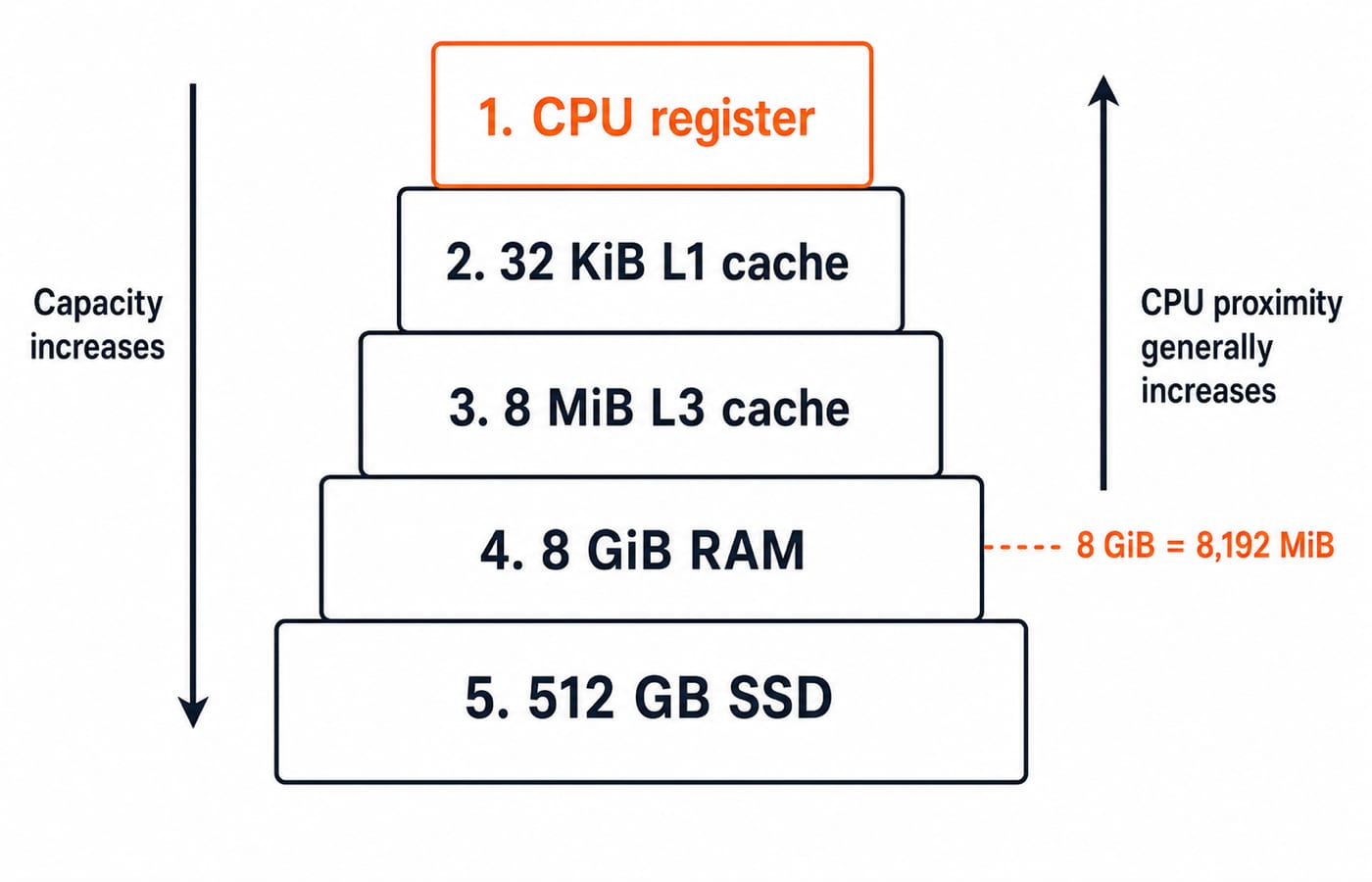
Order the layers as registers, cache, RAM, then SSD or hard disk drive (HDD). Registers sit inside the CPU and hold a handful of values. Cache is small, fast memory that keeps recently used instructions and data close to the CPU, arranged in levels such as a 32 KiB L1 and an 8 MiB L3. Capacity rises as you move down the list, while proximity to the CPU and speed fall. That ranking is a broad relationship, not a fixed latency table.
RAM is volatile working memory, so its contents are lost when power is removed. Read-only memory (ROM) is non-volatile memory traditionally used for persistent code or data. The name “read-only” identifies a memory class. It does not mean that every modern firmware device must be impossible to update.
Binary capacity units use powers of 1,024:
8 GiB = 8 x 1,024 MiB = 8,192 MiB.8 GiB = 8 x 2^30 = 8,589,934,592 bytes.If a simplified workload needs 512 MiB, then
8,192 / 512 = 16such allocations fit mathematically.
That last result is before reserving memory for the operating system and other processes. Also keep the labels precise: GB uses powers of 1,000, while GiB uses powers of 1,024. Continue with Memory Hierarchy and Virtual Memory Explained when you are ready to go beyond terminology.
Input, output, interfaces and transfer-rate units
A keyboard and scanner are input devices. A monitor and printer are output devices. A touchscreen is both because it displays information and receives touches. A NIC sends and receives data, so it is bidirectional communication hardware. A peripheral is any device connected to and used by a computer, not another name for an output device.
Universal serial bus (USB) and high-definition multimedia interface (HDMI) are interface standards. A port or interface defines how devices connect and exchange signals. It is not the storage device or the file being transferred.
Now transfer a 1.2 GB file over a 480 Mb/s link at 75% payload efficiency. All prefixes in this example are decimal:
File size in gigabits =
1.2 x 8 = 9.6 Gb = 9,600 Mb.Useful rate =
480 x 0.75 = 360 Mb/s.Time =
9,600 Mb / 360 Mb/s = 26.666... s, or about26.7 seconds.
Bytes and bits differ by a factor of 8. A rated link speed also does not automatically equal its useful payload rate.
HDD, SSD and the meaning of access time
An HDD stores data on rotating magnetic media and uses a moving head. An SSD stores data in flash memory and has no rotational delay.
Consider an illustrative HDD rotating at 7,200 revolutions per minute:
Time for one rotation =
60 / 7,200 = 0.00833 s = 8.33 ms.Average rotational latency = half a rotation =
8.33 / 2 = 4.17 ms.Add an average seek of 8.00 ms and transfer time of 0.50 ms.
Total average access time =
8.00 + 4.17 + 0.50 = 12.67 ms.
The 8.00 ms seek and 0.50 ms transfer time belong to this example drive, and real drives differ. Keep three measures separate: capacity is how much data fits, access time is the delay before or while reaching data, and transfer rate is how much data moves per unit time. “Speed” without a named measure is too vague.
Firmware and the high-confusion abbreviation table
BIOS and UEFI are firmware, persistent control code, not operating systems. Keep the distinctions compact:
Term | Expansion | Role | Volatile? | Common trap |
|---|---|---|---|---|
CPU | Central processing unit | Executes instructions | N/A | GHz counts cycles/s |
RAM | Random access memory | Working memory | Yes | Not long-term storage |
ROM | Read-only memory | Persistent code or data | No | Modern firmware may be updated |
HDD | Hard disk drive | Magnetic storage | No | Has rotational delay |
SSD | Solid-state drive | Flash storage | No | Can use different interfaces |
USB | Universal serial bus | Device interface | N/A | Not a storage medium |
NIC | Network interface card | Network communication | N/A | Sends and receives |
UPS | Uninterruptible power supply | Backup power and conditioning | N/A | Does not make DC rails |
SMPS | Switched-mode power supply | Makes regulated DC rails | N/A | Does not provide backup power |
BIOS | Basic input/output system | Platform firmware | No | Not an operating system |
UEFI | Unified Extensible Firmware Interface | Platform firmware | No | Not an operating system |
After power loss, the illustrative 8 GiB RAM loses its contents, while the 512 GB SSD retains files and UEFI remains available because both are non-volatile. For the wider syllabus, see ICT for Teaching Exams: Fundamentals Explained.
How exams turn hardware terms into questions
Four question forms recur: expansion matching, device classification, volatile versus non-volatile memory, and unit or access-time calculations. KnowledgeGate's practice bank carries more than 90 questions on general hardware terminology, and they cluster into those same four forms.
Try these three checks:
Which is volatile: RAM, SSD, ROM or Blu-ray disc? RAM, because it needs power to retain working data.
Which can both receive and display data: keyboard, printer, touchscreen or speaker? Touchscreen, because it accepts touch input and presents visual output.
A 2 MB file contains how many megabits when MB and Mb use the same decimal prefix?
2 x 8 = 16 Mb.
Watch for similar expansions, uppercase B versus lowercase b, primary versus secondary memory, and a device confused with its interface. Naming the trap often removes the wrong options before any calculation begins.
The short version: revise the map, then practise
Use a five-step retrieval sequence:
Identify the component's job.
Expand its acronym.
Decide whether it is volatile or non-volatile.
Name the unit.
Convert units, then calculate.
For the complete Unit 8 sequence, use the NTA UGC NET Paper 1 Course. Browse UGC NET Preparation Courses & Test Series for related options. Finally, redraw the system map, redo the 0.25 s CPU example and the 26.7 s transfer example without looking, then attempt practice questions.