MS Word Basics: Editing, Formatting, a Worked Document and Exam Traps
Learn how Word applies commands to characters, paragraphs, pages and files. Build an ICT revision plan, audit every state change and avoid common exam traps.
KnowledgeGate Team
Exam prep & CS education
Updated 23 Oct 20266 min read
MS Word questions look like simple memory checks until one prompt mixes the insertion point, selected text, character formatting, paragraph formatting, page layout and file output. The reliable method is to separate those layers, then trace one complete revision-plan document through each change. Use MS Office for CS Teaching Exams for the wider application map. Menu names follow common Word for Windows conventions and can vary by version or platform.
1. MS Word basics begin with document objects and the interface
Microsoft Word is a word-processing application for creating, editing, formatting, saving and printing documents. Microsoft Office and Microsoft 365 are wider families including Excel and PowerPoint.
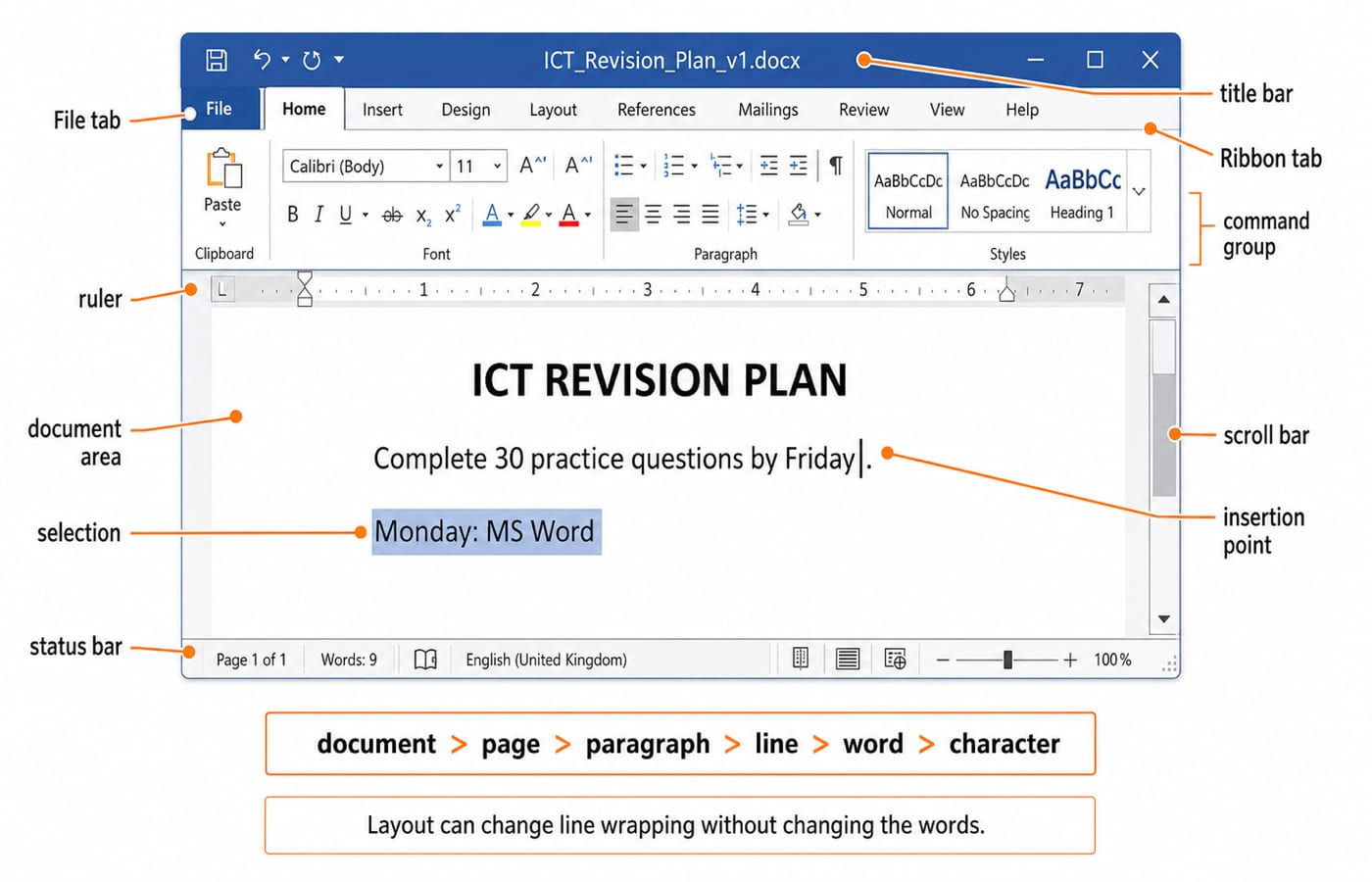
Think in objects. A document contains sections and pages; a page can contain paragraphs, tables and pictures; a paragraph contains lines, words and characters. Lines wrap as width changes, but Enter creates a paragraph. The insertion point shows where typing appears, while a selection shows what a command affects.
Common areas are the title bar and filename, Quick Access Toolbar where present, File or Backstage area, Ribbon tabs and groups, document area, rulers, scroll bars and status bar. Home covers editing and formatting, Insert adds objects, Layout handles page setup, Review covers proofing and comments, and View controls display. Microsoft Support's Word basics guidance explains these basics in more detail.
2. Editing changes content
Record the text and active insertion point or selection. From GATE ICT|, typing BASICS gives GATE ICT BASICS|. Reset, select only ICT, and type WORD; the selection is replaced, producing GATE WORD.
Backspace removes content on the left; Delete removes content on the right or a selection. Copy preserves the source, Cut removes it, and both place content on the Clipboard for Paste. Undo reverses the last editable action; Redo reapplies an undone action where available. In Word for Windows, Ctrl+C copies, Ctrl+X cuts, Ctrl+V pastes, Ctrl+Z undoes, and Ctrl+Y redoes. Common Editing Ctrl Keys Explained traces clipboard state and edit history across cut, paste, undo and redo; Word questions also require the active document object or selection.
Find does not edit. In Word, Excel, Word, it visits two occurrences and changes nothing. Replace All with MS Word produces MS Word, Excel, MS Word, making two replacements. In Windows Word, Ctrl+F opens Find and Ctrl+H opens Replace.
3. Character, paragraph and page formatting are different layers
Layer | What it affects | Examples |
|---|---|---|
Character | Selected characters | Font, size, bold, italic, underline, colour, superscript, subscript |
Paragraph | Current or selected paragraphs | Alignment, indentation, spacing, bullets, numbering |
Page or section | Page structure | Margins, orientation, paper size, columns, breaks |
In Database revision starts today., Bold on selected Database changes only its appearance. Centre applied anywhere in that paragraph changes paragraph alignment. Landscape changes page geometry and may reflow lines, but does not add bold or centring.
Direct formatting applies one command to the current selection. A style is a named formatting bundle, useful for keeping repeated heading levels consistent.
4. Worked example: build and audit an ICT revision plan
Create a blank document and type these six lines:
ICT REVISION PLAN
Prepared by: Asha
Revise MS Word, Excel and PowerPoint. Complete 30 practice questions by Friday.
Monday: MS Word
Tuesday: Excel
Wednesday: PowerPoint
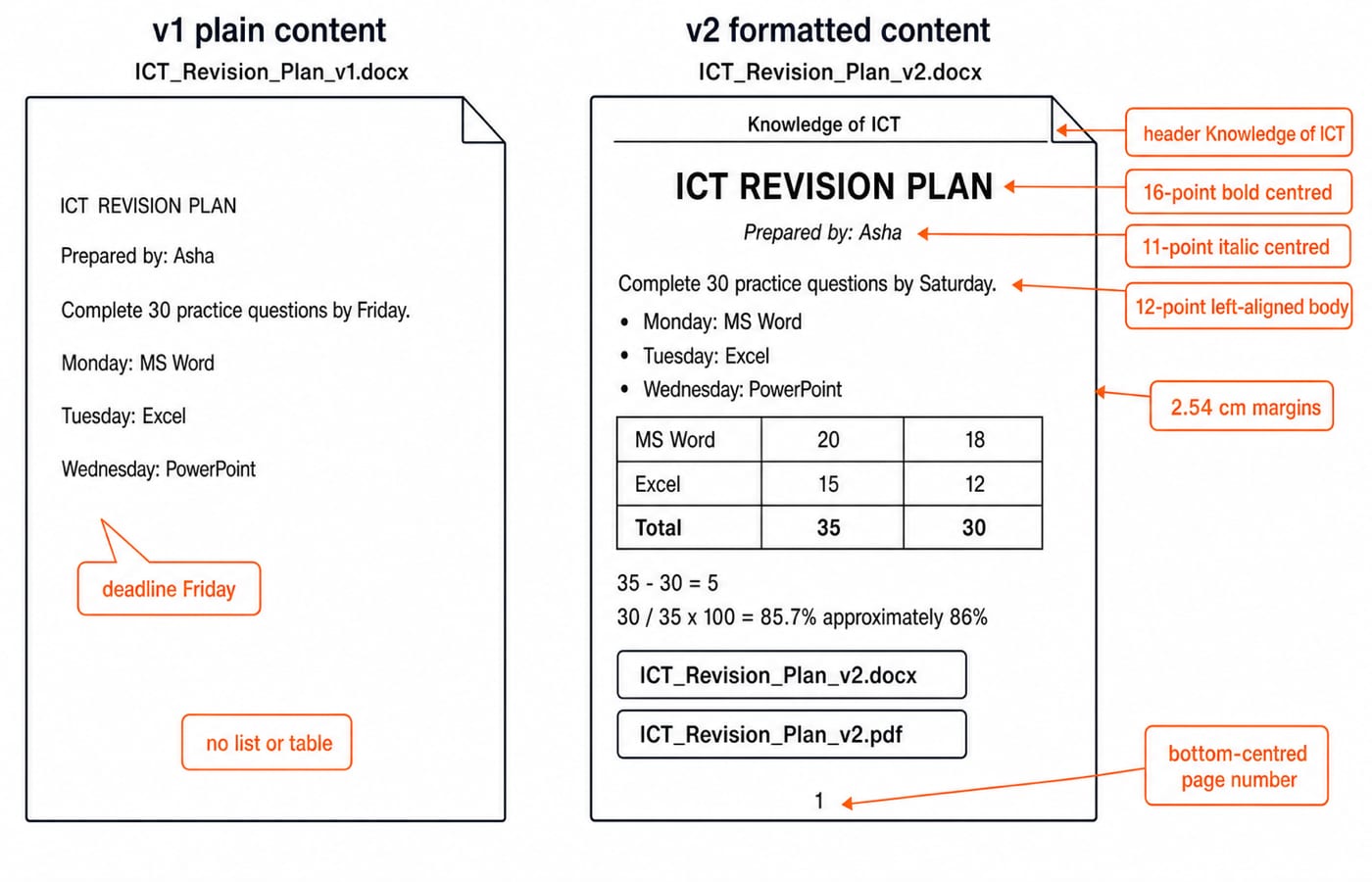
Save it as ICT_Revision_Plan_v1.docx, Word's normal editable format. Apply:
ICT REVISION PLAN: 16-point, Bold, Centre.Prepared by: Asha: 11-point, Italic, Centre.Body paragraph: 12-point, Left, 1.15 line spacing, 6 points after.
Monday, Tuesday and Wednesday: one three-item bulleted list.
Insert a four-row, three-column table. These are entered values; a basic Word table does not automatically behave like an Excel worksheet.
Task | Planned | Completed |
|---|---|---|
MS Word | 20 | 18 |
Excel | 15 | 12 |
Total | 35 | 30 |
Audit the arithmetic step by step:
Planned:
20 + 15 = 35.Completed:
18 + 12 = 30.Shortfall:
35 - 30 = 5.Completion rate:
30 / 35 x 100 = 85.714...%, or85.7%to one decimal place and86%to the nearest whole percent.
Choose 2.54 cm for all four margins. Add header Knowledge of ICT and a bottom-centred page number, then save v1. Replace the single Friday with Saturday, use Save As for ICT_Revision_Plan_v2.docx, and create ICT_Revision_Plan_v2.pdf for sharing.
Final audit: deadline Saturday; planned 35; completed 30; shortfall 5; completion 85.7% or 86%. Editable v1 and v2 remain distinct, and PDF is the output. Page count can vary with font metrics, printer settings and Word version.
5. Insert and Layout commands control different structures
A table uses rows and columns; a picture is a visual object; a header or footer repeats page-level information; a page number is a field. Table cells align values more reliably than tabs or spaces.
Enter creates a paragraph. In common Windows Word use, Shift+Enter makes a line break within it. A page break starts following content on a new page. Repeated Enter presses create movable empty paragraphs.
Margins control edge space, orientation controls portrait or landscape, and paper size controls dimensions. Here, 2.54 cm is chosen, not a universal default.
6. Save, Save As, export and print answer different questions
Save updates the current file. Save As creates another file and can change its location or format. PDF suits fixed-layout sharing. Cloud AutoSave can alter this workflow, so follow the exam's stated environment.
Format | Main purpose |
|---|---|
| Normal editable Word document |
| Fixed-layout sharing and reading |
| Plain text without Word formatting |
| Basic rich-text interchange |
| Older Word document format |
Do not assume perfect preservation between formats. Editing view is where you change the document. Print preview shows pagination, margins, headers, footers and table placement before physical output. Another printer or paper size can cause reflow.
7. Common MS Word traps and their corrections
Trap | Why it fails | Correct rule |
|---|---|---|
Word means the whole Office suite | It confuses one application with a family | Word is the word processor |
Insertion point equals selection | They mark different command targets | Record the active state |
Bold changes alignment | Bold is character formatting | Centre is paragraph formatting |
Centre affects only one selected word | Alignment belongs to the paragraph | The paragraph moves as a unit |
Spaces make stable columns | Spacing shifts with font and edits | Use a table |
Repeated Enter presses start a page | Empty paragraphs move | Insert a page break |
| Find normally locates text |
|
Save always creates a copy | Save updates the current file | Save As can create another file |
.docx is editable, PDF is usually fixed-layout, and changed margins can reflow unchanged words. Shortcuts depend on the application, platform and version.
For question-led practice, MS Word Basics MCQs with Answers tests page breaks, gutter margins, Format Painter, bookmarks, watermarks and mail merge. The worked plan concentrates on command targets, formatting layers and file output. Syllabus wording varies between recruiters, so check the notification for the exam you are sitting.
8. How exams test Word, and the short next step
Typical questions identify interface components, match commands to purposes, separate formatting layers, trace selected text, choose formats, or test Save versus Save As.
Use Microsoft Support for current Word behaviour, but use the exam body's notice for its syllabus or pattern.
Try three checks. In WORD|, Backspace gives WOR|; Delete at the end removes nothing. Bold on the selected first ICT in ICT ICT changes appearance, not characters. After saving Plan_v1.docx, changing Friday to Saturday and using Save As for Plan_v2.docx, both files can exist and v2 has the new deadline. For caselets, track content, selection or insertion point, formatting, filename and output type.
Editing changes content; character formatting changes selected characters; paragraph formatting changes paragraph presentation; page formatting changes layout; Save, Save As and PDF are separate decisions. Close and reopen v2, use Print Preview to confirm the header, page number, margins and table, then explain why the PDF is a separate output.
Rebuild ICT_Revision_Plan_v2.docx unaided, then use the RSSB Basic Computer Instructor Course to check any command or formatting layer you could not reproduce. If RSSB is not your target, Govt Teaching Job Exam Preparation lists related teaching-exam routes.
Keep learning
Excel Functions and Charts Explained: Formulas, a Worked Sheet and Exam Traps
Learn how Excel formulas, references and charts work by building one mock-test worksheet from scratch. Every output is calculated and every common trap has a fix.
Updated 19 Oct 20265 min readTeaching Recruitment (Computer Science)
Digital Society Explained: Core Concepts, a Worked Inclusion Audit and Exam Patterns
Learn to separate access, skills and outcomes, audit digital inclusion with a worked funnel, apply data minimisation and solve common exam cases.
Updated 15 Oct 20266 min readTeaching Recruitment (Computer Science)
Common Editing Ctrl Keys Explained: Copy, Cut, Paste, Undo and Redo with Worked Examples
Learn what each common Ctrl key does, then trace the document, clipboard, cursor and edit history through precise examples without confusing Copy, Cut or Undo.
Updated 11 Oct 20266 min readTeaching Recruitment (Computer Science)
Browsers and Search Engines MCQs: 9 Solved Questions with Explanations
Solve nine published browser and search engine questions, check each answer, and rebuild the browser, cache, crawler and indexing distinctions that exam distractors blur.
Updated 6 Oct 20267 min readTeaching Recruitment (Computer Science)