Python Setup for Beginners: Install and Run Your First Program
Build a clean Python project from scratch, verify the interpreter, run a complete program and diagnose the setup mistakes that catch most beginners.
KnowledgeGate Team
Exam prep & CS education
Updated 29 Aug 20265 min read
Python installation is useful only when you can prove which interpreter, environment and file ran. Complete the Introduction and Setup in Python tutorial with examples if Python is not installed yet. Then collect four observable results: a Python 3 version, a .venv interpreter path, a visible hello.py file and the program's exact output. Any failed result identifies the next repair.
Prove a Python setup with four observable results
A usable setup produces four pieces of evidence:
Launcher: the version command begins with
Python 3.Environment:
sys.executablepoints insidepython-start/.venv.File location:
dirorlsshowshello.pyin the current folder.Execution:
python hello.pyprintsAsha planned 4 topics for 100 minutes.
Start with a neutral interpreter test that does not depend on a saved file:
python -c "print(6 * 7)"A pass prints 42. The saved-program gate later must print Asha planned 4 topics for 100 minutes. Explore the Coding & Skill Development Courses only after all four setup gates pass.
Prove the Python 3 launcher before creating a project
Obtain Python 3 from Python's official website or use your operating system's supported installation route. On Windows, the installer must make a launcher available to a newly opened terminal. Try:
py --version
python --version
Use the command that works on your machine. On macOS or Linux, try:
python3 --versionA successful result begins with Python 3; the remaining digits vary by machine. Now run a readiness check.
Windows:
py -c "print('Python is ready')"macOS or Linux:
python3 -c "print('Python is ready')"The exact output must be:
Python is readyIf the terminal says the command was not found or not recognised, the problem is the launcher or PATH, not print(). Reopen the terminal first, try the suitable launcher for your operating system, then revisit the installation settings.
Prove project isolation with sys.executable
In Windows Command Prompt, enter these commands one by one:
mkdir python-start
cd python-start
py -m venv .venv
.venv\Scripts\activate.bat
On macOS or Linux, use:
mkdir python-start
cd python-start
python3 -m venv .venv
source .venv/bin/activate
python-start is now your current project folder. .venv contains its isolated environment, and (.venv) at the start of the prompt normally signals that it is active. You do not need any third-party package for this lesson.
Check which interpreter will run:
python -c "import sys; print(sys.executable)"The returned path should include both python-start and .venv. Its full form depends on your username and operating system, so do not compare it with somebody else's absolute path.
Run, trace and change one saved Python program
Create hello.py in your editor and save this exact program:
student = "Asha"
topics = 4
minutes_per_topic = 25

total_minutes = topics * minutes_per_topic
print(f"{student} planned {topics} topics for {total_minutes} minutes.")
From the activated environment, run:
python hello.pyThe output is:
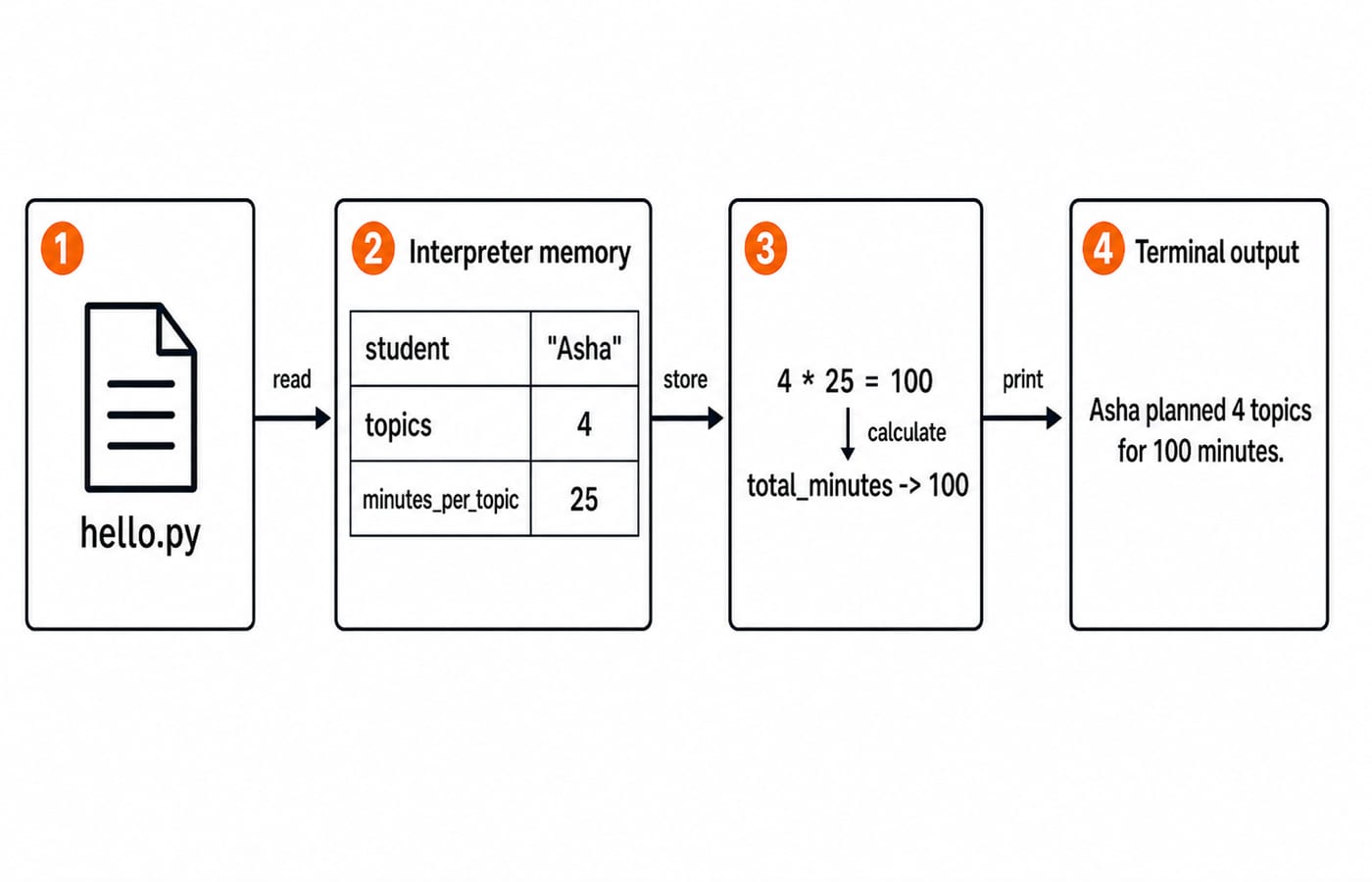
Asha planned 4 topics for 100 minutes.Trace it before moving on. student stores "Asha", topics stores 4, and minutes_per_topic stores 25. Python calculates 4 * 25 = 100 and stores that result in total_minutes. The f-string then inserts Asha, 4 and 100 into the sentence.
Now change only topics = 4 to topics = 6, save the file and predict the result. The calculation becomes 6 * 25 = 150, so the new output is:
Asha planned 6 topics for 150 minutes.This change proves that Python executed the newly saved instructions.
Use the REPL as a control test
With .venv active, start the REPL by entering python. Try:
>>> 7 * 6
42
>>> name = "Ravi"
>>> f"Hello, {name}"
'Hello, Ravi'
The REPL is useful for a quick calculation or syntax check. A saved file preserves a complete set of instructions that you can edit and rerun. Enter exit() to leave the REPL, then use python hello.py in the terminal again.
The >>> symbols are the REPL's prompt, not Python source code. Copying >>> 7 * 6 into hello.py causes a syntax failure. A saved line should be only 7 * 6, or print(7 * 6) when you want visible output.
Diagnose Python setup failures in dependency order
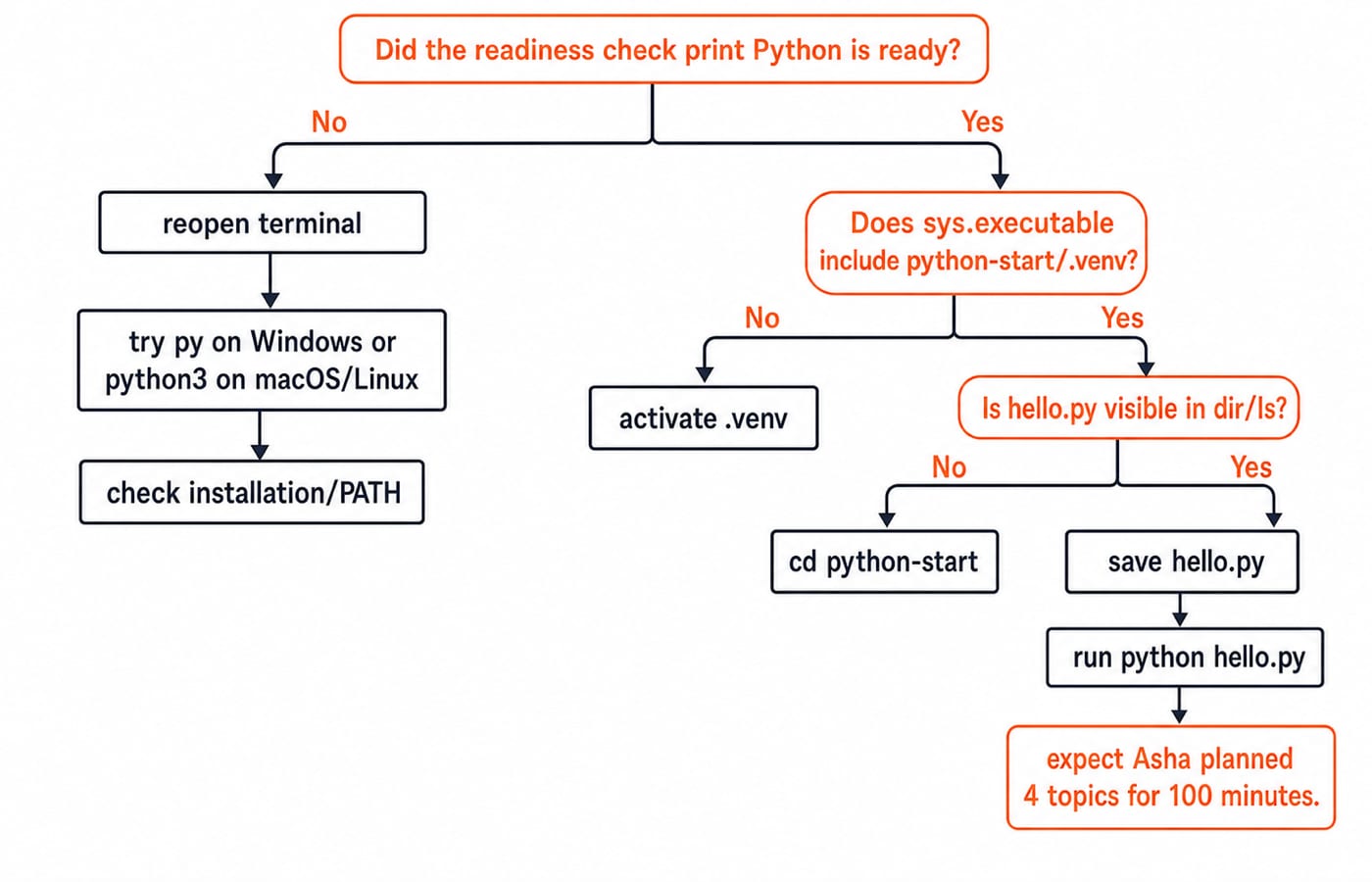
Check failures in dependency order: launcher, selected interpreter, file location, then saved program.
Launcher not found: reopen the terminal, try the operating system's appropriate launcher, then check the installation and PATH.
Python cannot open
hello.py: enterdiron Windows orlson macOS or Linux. If the file is absent, usecdto return topython-start.Wrong interpreter: if
sys.executabledoes not point inside.venv, activate the environment again.Old output: after changing
topicsfrom4to6, the minutes must change from100to150. If they do not, savehello.pyand rerun the same command.
Indentation is part of Python's syntax. This code is wrong because the second line is not indented:
if total_minutes > 60:
print("Long session")
It can raise IndentationError. Repair it with four spaces:
total_minutes = 100
if total_minutes > 60:
    print("Long session")
Because 100 is greater than 60, the corrected code prints Long session.
Test the setup with small predicted results
Predict each result before running the command:
print("7" * 3)prints777because Python repeats the string three times.print(2 + 3 * 4)prints14because multiplication happens first:3 * 4 = 12, then2 + 12 = 14.print(type(25).__name__)printsintbecause25is an integer.
Next, complete two setup exercises:
Create
check.pywithhours = 3,minutes = hours * 60andprint(minutes). The required output is180because3 * 60 = 180.In
hello.py, setstudentto"Ravi",topicsto5andminutes_per_topicto20. Predict and confirmRavi planned 5 topics for 100 minutes.because5 * 20 = 100.
For a repair exercise, run Print("Ready"). It raises NameError because names are case-sensitive. Change it to print("Ready"), which outputs Ready.
Repeat the same prediction-and-repair loop with unfamiliar expressions: predict first, run second and explain any mismatch before moving on.
Repeatable Python setup checklist and next step
The complete process is six steps:
Install Python 3.
Verify the operating system's appropriate launcher.
Create
python-start.Activate
.venv.Save
hello.py.Run it until you see
Asha planned 4 topics for 100 minutes.
Open a fresh terminal and repeat the process once without looking at the commands. That repetition turns a list of instructions into a setup you understand.
The Python Programming course is the immediate structured next step. Consider DSA Using Python later, after variables, control flow, functions and collections feel comfortable. For optional CS foundations, read Number Systems and Base Conversions Explained.
Keep learning
Itertools in Python: Lazy Iterators, Pipelines and Worked Examples
Learn how Python's itertools builds readable, lazy pipelines. Runnable examples cover infinite iterators, filtering, running totals, adjacent pairs, tee, combinations and groupby.
Updated 26 Oct 20266 min readPython
File Handling in Python: Read, Write, Append, CSV and Binary Examples
Learn a reliable file-handling workflow through one scores file, then apply it to cursor control, append mode, CSV quoting, binary records and common errors.
Updated 24 Oct 20266 min readPython
Decorators in Python: @ Syntax, Wrappers and Worked Examples
Understand when decoration happens, what a wrapper receives, and how return values travel back. Runnable examples cover parameters, stacking and built-ins.
Updated 22 Oct 20266 min readPython
Exceptions in Python: Handle Errors with try, except and finally
Learn how Python exceptions change control flow, how to catch expected failures without hiding bugs, and when to use else, finally, raise, and custom exceptions.
Updated 18 Oct 20265 min readPython