PowerPoint Slides and Views Explained: A Worked Deck and Exam Traps
Learn what each PowerPoint view does, then trace a deck through reordering, duplication and hiding. The worked example separates slide count from show count.
KnowledgeGate Team
Exam prep & CS education
Updated 26 Oct 20265 min read
PowerPoint questions are rarely difficult because of slide design. They become confusing when Normal, Outline, Slide Sorter, Notes Page, Reading, Slide Show and Master views are treated as interchangeable names. A 12-slide deck can be reordered and duplicated, with one slide hidden, so the editor and audience see different counts and sequences.
PowerPoint slides and views: build the mental model first
A presentation is the whole file; a slide is one page-like unit inside it. A placeholder is a layout-controlled content container, while a layout arranges placeholders. A view is a workspace for inspecting, editing, organising or presenting the deck. Changing views does not create another presentation.
Keep four layers separate. Text, pictures, charts and shapes are content. Order and hidden status organise the deck. Layouts and masters govern repeated structure. Views determine how people work with it. MS Office for CS Teaching Exams places PowerPoint beside Word and Excel. In PowerPoint, the four areas to keep distinct are slides, views, layouts and masters.
PowerPoint views: match each workspace to one job
View | What it shows | Best use | Common confusion |
|---|---|---|---|
Normal | Editable slide plus navigation | Edit slide content | Not the text-led Outline |
Outline | Title and body-text hierarchy | Review wording and flow | Not a full visual preview |
Slide Sorter | Deck-wide thumbnails | Reorder, duplicate, check hidden slides | Does not deliver the show |
Notes Page | One slide with its notes | Add or print a unique cue | Not Notes Master |
Reading View | Presentation inside a window | Preview with desktop access | Not a thumbnail organiser |
Slide Show | Audience-facing presentation | Deliver visible slides | Normally skips hidden slides |
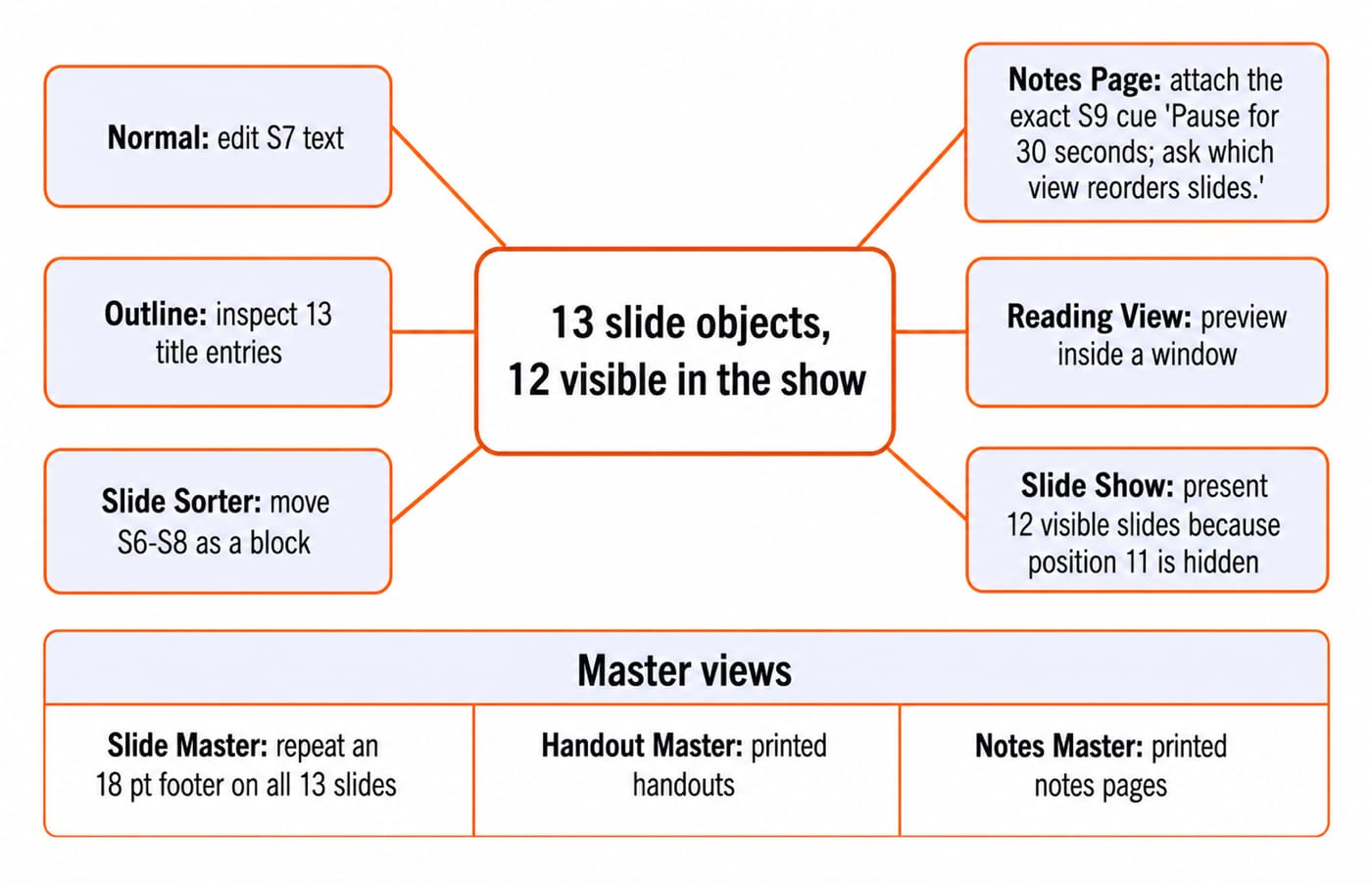
Master views are a separate family. Slide Master controls repeated design through a master and child layouts. Handout Master controls printed handouts; Notes Master controls printed notes pages. A master is not a content slide.
For the worked deck: edit S7 in Normal; inspect headings in Outline; move S6-S8 in Slide Sorter; add the S9 cue in Notes Page; preview in Reading View; deliver 12 visible slides in Slide Show.
Worked example: reorganise a 12-slide PowerPoint deck
S1-S12 remain stable labels even when positions change:
S1 Title, S2 Agenda, S3 ICT Basics, S4 Word Basics, S5 Excel Basics, S6 PowerPoint Basics, S7 Presentation Views, S8 Slide Master, S9 Practice Question, S10 Answer, S11 Recap, S12 Q&A.
The starting order is S1, S2, S3, S4, S5, S6, S7, S8, S9, S10, S11, S12.
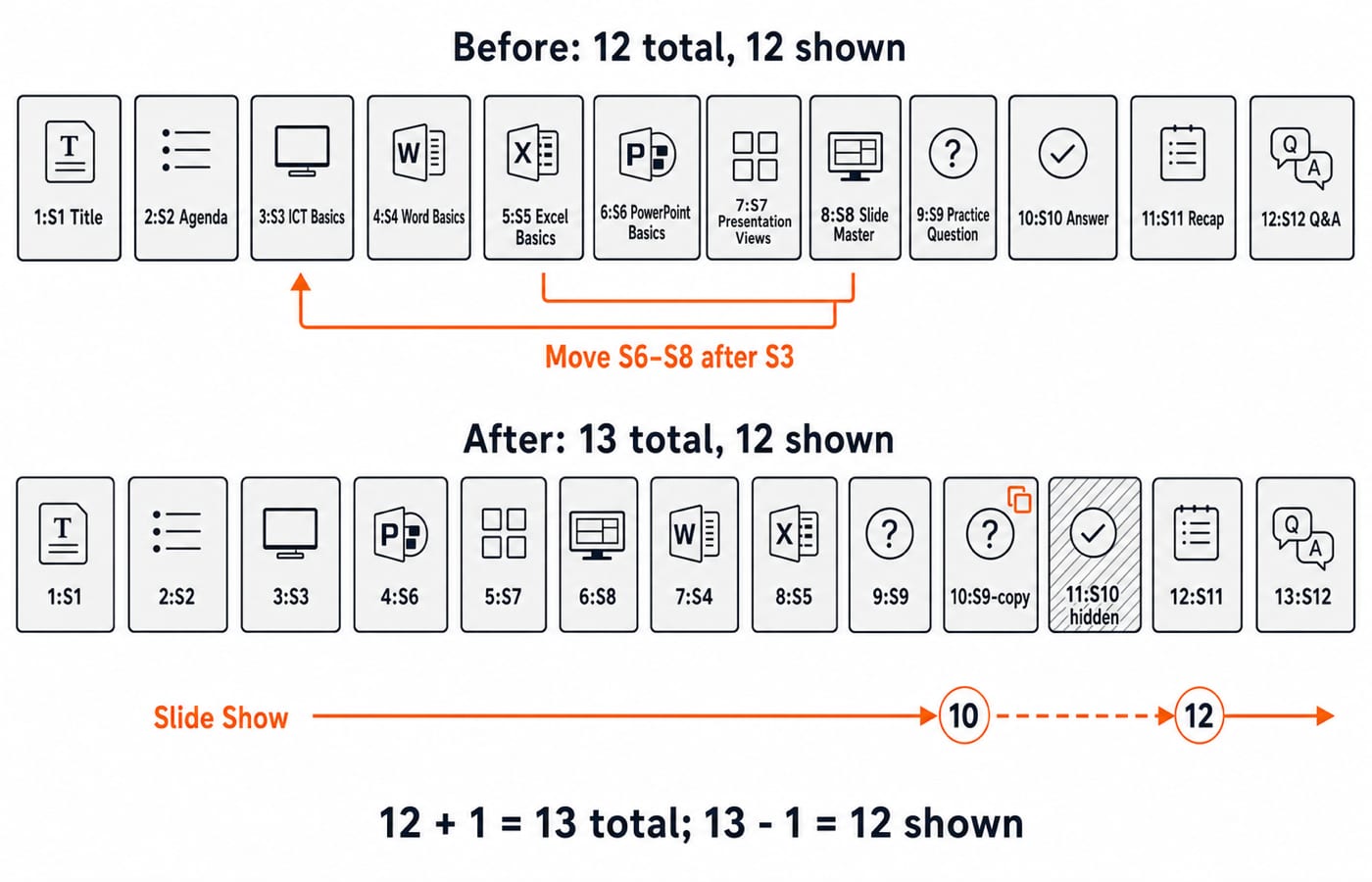
In Slide Sorter, move block S6-S8 after S3:
S1, S2, S3, S6, S7, S8, S4, S5, S9, S10, S11, S12.Duplicate S9 as
S9-copy: Practice Question 2immediately after S9. The deck now contains 13 slide objects.Hide original
S10 Answer, now at position 11.In Notes Page for original S9, enter
Pause for 30 seconds; ask which view reorders slides.
The count is 12 original + 1 duplicate = 13 objects in Normal and Slide Sorter; 13 total - 1 hidden = 12 appear in Slide Show. The visible order is S1, S2, S3, S6, S7, S8, S4, S5, S9, S9-copy, S11, S12. From S9-copy at position 10, the show skips hidden S10 at 11 and continues to S11 at 12. S10 remains editable and counted.
Slide Master, layouts, themes and templates are not synonyms
A theme supplies coordinated colours, fonts and effects. A Slide Master and child layouts control repeated design and placeholder arrangements. A slide receives a layout and holds content. A template is a reusable starting file that can package a theme, layouts and sample content. A view is only a working perspective.
Assume all 13 objects use one Slide Master and none suppresses master background graphics. An 18 pt footer reading Knowledge of ICT on that master repeats on all 13 slides, including the hidden one. The same text box added to S7 in Normal changes only S7. Multiple masters, overrides or hidden background graphics alter the result.
Handout Master changes repeated printed handout elements; Notes Master changes printed notes-page design. The unique S9 cue still belongs to S9, not Notes Master.
Choose the view from the task, not the similar-sounding name
Edit one title in Normal; review text flow in Outline; move slides in Slide Sorter; write or print a unique cue in Notes Page; preview in a window in Reading View; present in Slide Show.
Slide Sorter changes sequence but does not deliver the show. Outline prioritises text, not full visuals. Notes Page pairs a slide with notes; Notes Master formats repeated printed output. Reading View previews but does not organise thumbnails.
PowerPoint slides and views: traps that change the answer
Trap | What goes wrong | Exam-safe correction |
|---|---|---|
Slide Sorter vs Slide Show | Organisation becomes delivery | Sorter rearranges; Show presents |
Normal vs Outline | Visual editing becomes text flow | Normal edits; Outline reviews hierarchy |
Notes Page vs Notes Master | One cue becomes repeated formatting | Page handles the cue; Master handles print design |
Hidden vs deleted | Hidden is removed from the count | Hidden remains; deleted does not |
Layout vs theme | Arrangement becomes styling | Layout arranges; theme styles |
Slide Master vs template | Deck design becomes a starting file | Master controls; template starts |
The hidden slide remains among 13 thumbnails, while the show presents 12. Delete S10 instead, and 12 objects remain; with none hidden, all 12 show. “Apply to every slide” points to Slide Master; “change this slide only” points to Normal. “Rearrange” points to Slide Sorter; “run for an audience” points to Slide Show. No view is best without a task.
How objective questions test PowerPoint views
Objective questions commonly use definition matching, task scenarios, statement correctness, or state tracing after duplicate, hide and delete operations. ICT for Teaching Exams: Fundamentals Explained places them within wider revision.
A 14-slide deck with 3 hidden slides gives
14thumbnails and14 - 3 = 11slides in a normal show, because hiding does not delete.Move slides 2, 6 and 9 in Slide Sorter, which exposes deck-wide thumbnails.
Change a repeated logo across layouts through Slide Master, which controls repeated structure.
Put a unique cue beside one slide in that slide's notes, viewed through Notes Page or the notes pane, not Notes Master.
For broader preparation, inspect Govt Teaching Jobs or the live RSSB Basic Computer Instructor Course.
PowerPoint slides and views: short version and next step
Remember: Normal edits one slide; Outline follows text; Slide Sorter manages order; Notes Page pairs a slide with its cue; Slide Show delivers visible slides. Master views control repeated output.
Try a 10-minute drill: create A-F, move E after B, hide C, and duplicate F. Moving changes no count, so 6 + 1 = 7 objects; 7 - 1 = 6 appear in the show.
KnowledgeGate offers PowerPoint Slides & Views practice questions. For broader MS Office preparation, the UP Police Computer Operator Course description includes MS Office. Then test whether each question asks about content, order, notes, delivery or repeated design.
Keep learning
Office Mixed Concepts Explained: Access, Clipboard, File Formats and Exam Traps
Learn how Word, Excel, PowerPoint and Access differ, then trace six learner records through a query, an export, a linked chart and a static picture.
Updated 25 Oct 20265 min readTeaching Recruitment (Computer Science)
MS Word Basics: Editing, Formatting, a Worked Document and Exam Traps
Learn how Word applies commands to characters, paragraphs, pages and files. Build an ICT revision plan, audit every state change and avoid common exam traps.
Updated 23 Oct 20266 min readTeaching Recruitment (Computer Science)
Excel Functions and Charts Explained: Formulas, a Worked Sheet and Exam Traps
Learn how Excel formulas, references and charts work by building one mock-test worksheet from scratch. Every output is calculated and every common trap has a fix.
Updated 19 Oct 20265 min readTeaching Recruitment (Computer Science)

Digital Society Explained: Core Concepts, a Worked Inclusion Audit and Exam Patterns
Learn to separate access, skills and outcomes, audit digital inclusion with a worked funnel, apply data minimisation and solve common exam cases.
Updated 15 Oct 20266 min readTeaching Recruitment (Computer Science)